

GUIDE ·
How to add your page to your Instagram bio and Stories
Your Instagram shows your work. Your page says what you do, where you work and how to reach you. Connecting the two takes a few minutes: the link stays in your bio, and shows up in your Stories whenever you want to remind people of it.
Before you start: copy your page’s address
Use the address you got when your page went live. It looks like this:
https://personal.ninja/your-name/
Replace “your-name” with your page’s address, and open the link on your phone before you share it, to check that it works.
1. Add the link to your Instagram bio
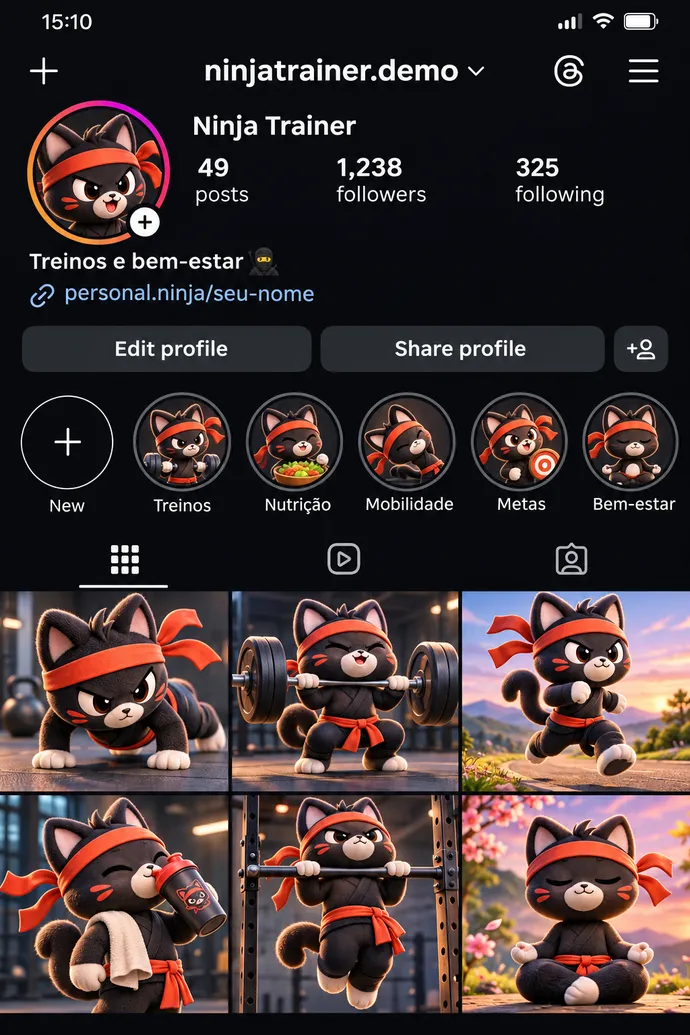
- Open Instagram and go to your profile.
- Tap Edit profile.
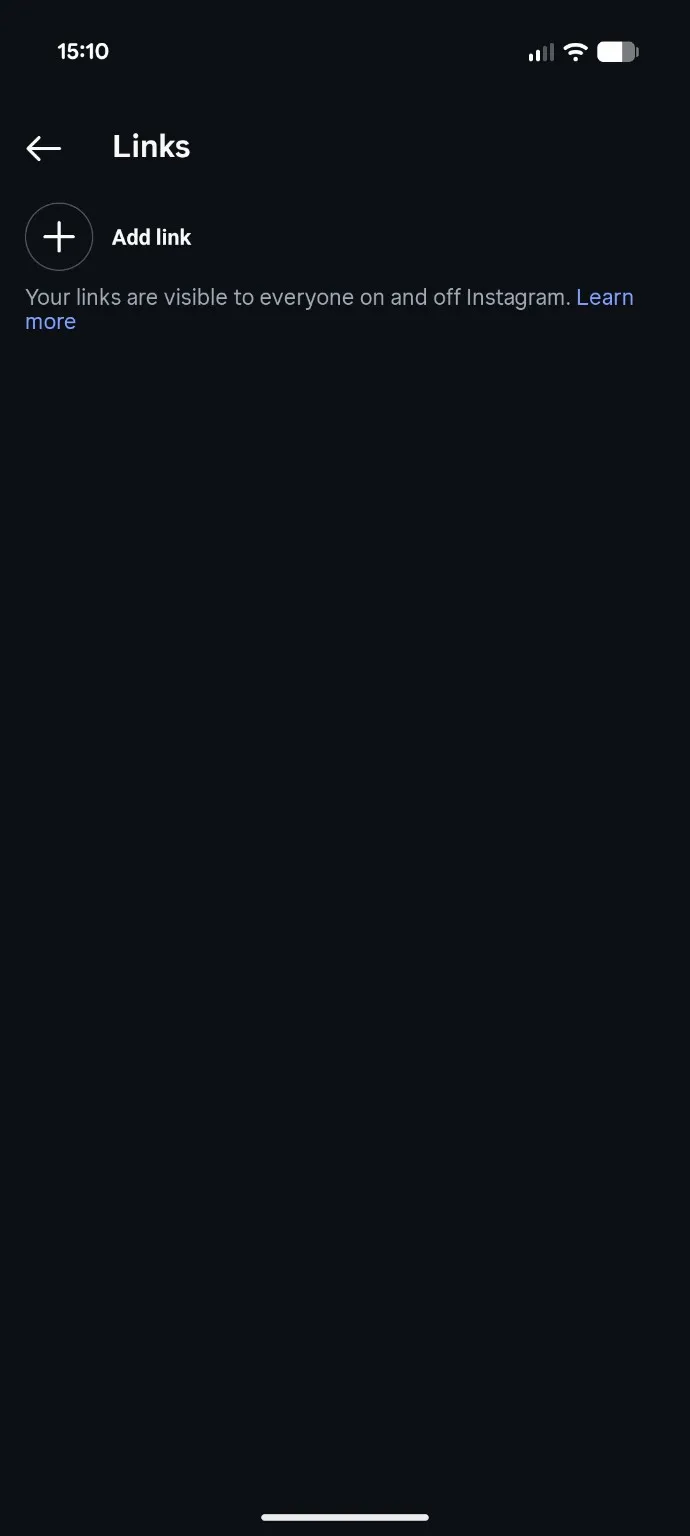
- Open Links and tap Add external link (or Add link, depending on your app version).
- Paste your page’s full address, with https://. If there is a title field, write something like My website or See my work.
- Save, go back to your profile and tap the link to test it.
2. Share your page in a Story
- Create a new Story.
- Pick a photo or graphic that shows your work: you with a client, your space, or your page open on your phone.
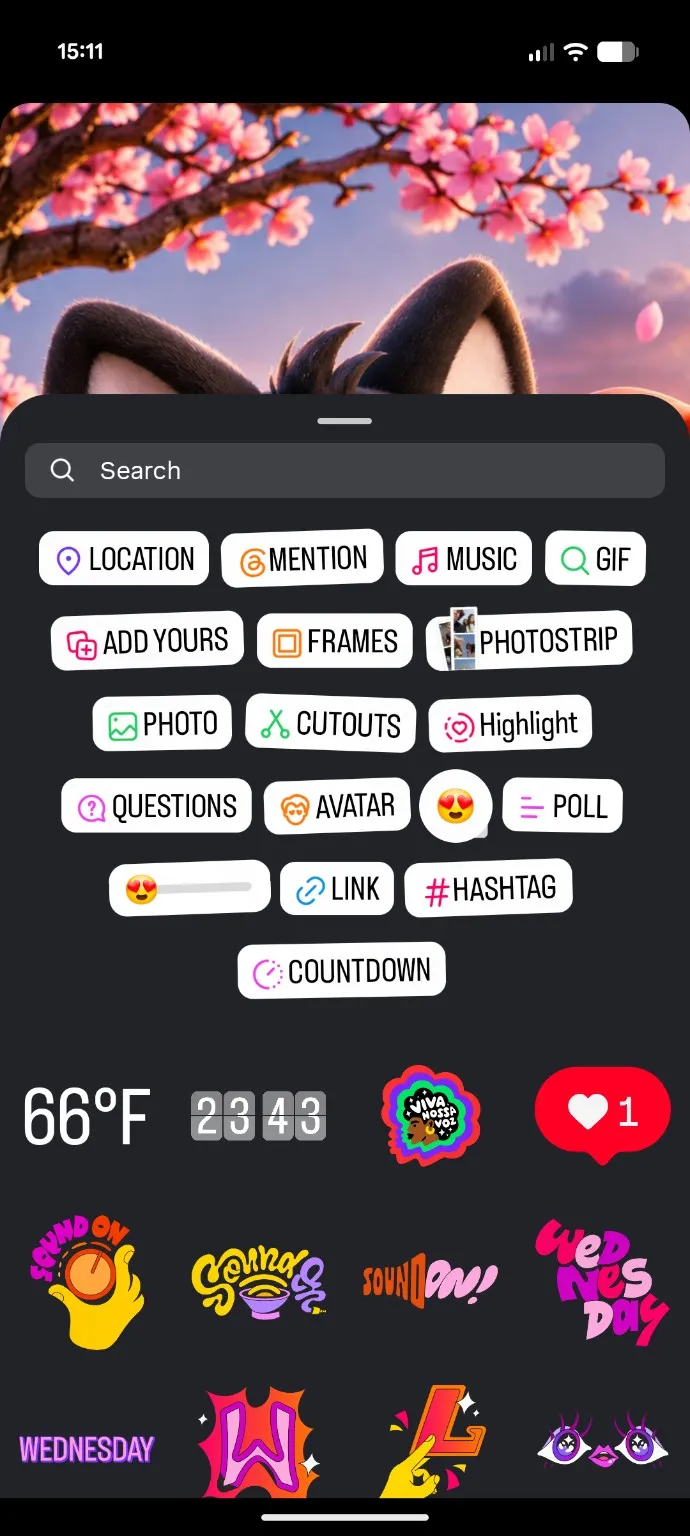
- Tap the stickers icon (the smiling square) and choose LINK.
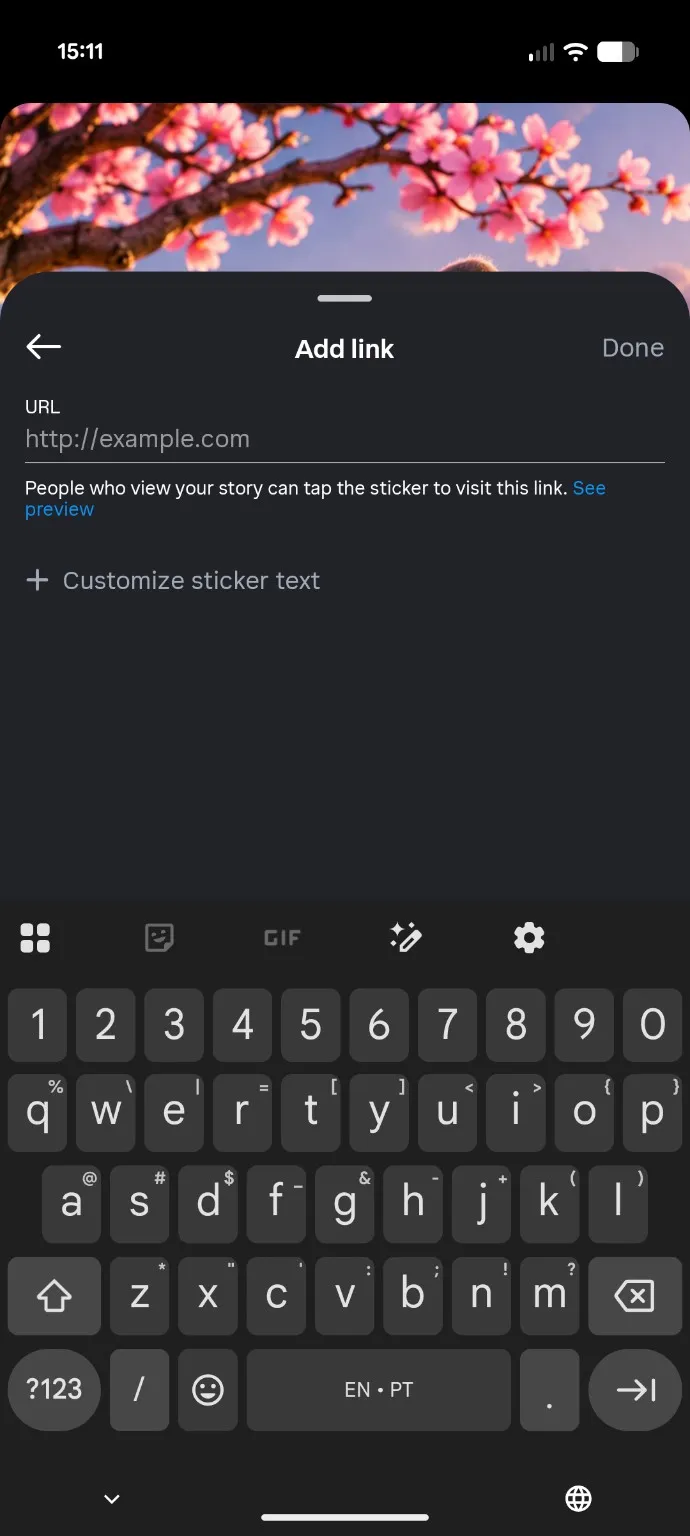
- Paste your page’s address. Tap Customize sticker text and write something like See my work or Book a session.
- Tap Done, put the sticker where it’s easy to tap, and post.

After posting, save the Story to a Highlight called “My website” or “Book”. That keeps the link on your profile after the 24 hours are up.
What to write so more people tap
Instead of posting just the address, tell people what they will find: “Want to know how my coaching works? See everything and message me through the link.” A clear call to action beats a link with no context. Repeat it now and then: someone who followed you yesterday never saw last week’s Story.
For the bio text itself, see step 6 of How to get personal training clients or step 8 of How to grow your practice.
Images are illustrative. Instagram changes button names and places from time to time.